Thursday, March 9, 2017

Assignment 5: Processing Pix4D Imagery with GCPs

Introduction

For this assignment the objectives were to further learn about how to process imagery in Pix4D, use Pix4D's rayCloud GCP editor, rematch and optimize the imagery, and merge two projects into one DSM and orthomosaic rendering.

This assignment involved using a lot of the same methods as the last image processing assignment, however this time GCPs were used. A GCP or ground control point, is a physical landmark that represents a known coordinate. These markers are placed at various ground locations throughout the site of study. When the UAS is in flight, it takes aerial photographs of the ground and in those photographs, some will contain GCPs. When the user goes to process the imagery, the ground control points are used to georeference the locations of the photographs, placing the imagery into a coordinate system.

Methods

For this assignment, the two Litchfield flights were processed separately, but the same methods were applied to both. The first step was to process the Litchfield flight 1 photos. The same methods used to process imagery in Assignment 3, were used in this processing. Before initially processing the images, however, a file containing the GCP coordinates was added to the map.

Figure 1: Adding GCPs before initial processing 

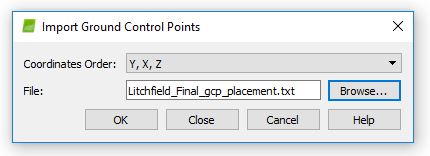
Figure 2: Importing .txt file containing GCP coordinates  

Figure 3: Map view after GCPs were added to the map (from Flight 2 processing)
Once this was done and initial processing was complete, the GCPs were tied down using the rayCloud GCP editor. Figure 4 shows the GCP locations as floating blue points in the rayCloud.

Figure 4: Pre-GCP editing
Obviously, floating GCPs aren't exactly what's desired for tying down the images, so the next step was to use the rayCloud GCP editor and match all the floating points with their corresponding GCPs, using the aerial photographs.

Figure 5: Using the rayCloud GCP editor
Once the floating GCP point was clicked on, the user could find the actual GCP in the images containing it and clicked on the center to accurately tie down the floating point to its corresponding GCP, thus georeferencing the images. After all floating points were tied down to GCPs, the project was rematched and optimized. In figure 6 and figure 7, the green points represent the tied down GCP locations. The blue points in figure 7 represent speculated GCP locations that were not found in any of the images during GCP editing. 

Figure 6: rayCloud before imagery has been rematched and optimized
Figure 7: rayCloud view of rematched and optimized project (flight 2)
 When looking at figure 7, the green triangles represent the height and position of the photos from the initial flight and the blue triangles represent the corrected position and imagery after rematching and optimizing. From there, the rest of the processing was completed and the quality report, DSM, and orthomosaic rendering were produced. Then, the same processes were done for the Litchfield flight 2 images.
Figure 8: Summary and preview of Litchfield flight 1 from quality report.
Once both flights were processed, they were merged together by going through yet another full processing. The final result? A fully rendered DSM and orthomosaic of the entire Litchfield mine.

Results

As compared to processing imagery with out GCPs.
Figure 9: Merged DSM Hillshade
Figure 10: Comparison Hillshade DSM
Looking at figure 9 and figure 10, figure 9 shows a little more accuracy in the southwestern and eastern portions of the rendering. In figure 10, there is a bit more distortion in those areas. Both of the southern portions are distorted due to the tree coverage but the area at the cusp of the tree line is less distorted in figure 9 than in figure 10. The hillshade appears more crisp in figure 9 as well.
Figure 11: Merged Orthomosaic Hillshade
Figure 12: Comparison Orthomosaic Hillshade
Looking at figure 11 and figure 12, there isn't too much of a difference in quality. The features in figure 11 are slightly more defined perhaps, however both match up with the basemap quite well and show features accurately.

Conclusions

After processing imagery for the same site, one using GCPs and one not using GCPs, there is only a slight difference in quality. For this imagery, the photos taken already have geocoded locations so there are some things to consider in that regard. Perhaps with a different UAV the results would show that using GCPs is crucial to processing and georeferencing accurately. The only noticeable differences in quality would be in the southwestern and eastern portions of the DSM and the camera optimization in the summary. The areas that got a bit muddy in the non-GCP processed rendering came out more defined and accurate, in the rendering processed with GCPs. In figure 8, the summary shows that the camera optimization had a 0.47% relative difference between initial and optimized internal camera parameters. While the merged quality report showed that the camera optimization was a little less accurate than in figure 8, it was still more accurate than the 5.22% relative difference in the imagery processed with out GCPs.

Monday, March 6, 2017

Assignment 4: Value Added Data Analysis with ArcGIS Pro

Introduction

The purpose of this assignment was to learn about calculating surface imperviousness for spectral imagery. This was done in ArcGIS Pro and by segmenting imagery

Methods

All calculations and data manipulation done in this assignment were guided by ArcGIS Online's "Calculating Surface Imperviousness for Spectral Imagery" course. The first step was to segment the imagery. This involved extracting spectral bands 4, 1, and 3. This pulled the red and blue bands from the original imagery of the subdivision to better see differences in the land surface. Then the extracted bands image was segmented. This involved reducing the amount of spectral and spatial detail in the image, making it easier to classify the surface in the next step.
Figure 1: Segmented Imagery
To classify the imagery, the Louisville neighborhood and segmented images were dragged into ArcMap. The image classification tool was used to draw rectangles over houses, roads, driveways, bare earth, grass, water, and shadows all over the map. These seven categories would become the different classifications for the imagery.
Figure 2: Louisville neighborhood imagery with classes
Next, in order to break down the imagery further, the reclassify tool was used to differentiate man-made and natural surfaces. Man-made surfaces were called "impervious" features and given a value of 0. The natural surfaces were called "pervious" features and given a value of 1.
Figure 3: Impervious and pervious imagery
Next, the accuracy of the classification was assessed by looking at individual accuracy points for the imagery and the ground truth was corrected for the first ten points.
Figure 4: Assessing ground truth
Then, the confusion matrix was computed indicating the accuracy of the data classification. With 96 percent user accuracy, the data is reliable enough to use in the final production of the map. Before making the map, however the area of impervious surfaces must be tabulated and joined to the parcels layer. This computation would be used to assign each parcel within the subdivision a value of either grey roofs, roads, driveways, bare earth, grass, water, or shadows. 

Once the data has been tabulated and joined to the parcels layer, the next step was to clean up any unnecessary fields as a result of the join. Lastly, a graduated colors symbology was chosen to differentiate which parcels represented which surface values defined earlier. 

Result
Figure 5: Impervious area in feet
As shown by the resulting map, this technology could be very useful to city planners, census applications, land surveying, and the list goes on. When the original image was simply an aerial photograph of the subdivision, it is pretty amazing that a map containing impervious area for each segment of the neighborhood was created. Doing the manipulation of the imagery was fairly easy and user friendly as well, meaning that it can be widely accessible and accurately used.

Saturday, March 4, 2017

Assignment 3: Processing Imagery with Pix4D

Introduction

The goal of this assignment was, as the title implies, to get familiar with processing imagery in the Pix4D. Before this was done, however, it was important to understand a little bit about the software and what requirements the software needed to process imagery from a UAS flight.

One of the most important aspects of processing quality imagery in Pix4D is the amount of overlap between the images. According to the Pix4D user guide, the recommended overlap for image processing is 75 percent frontal overlap (distance between pictures taken in flight path) and 60 percent side overlap (distance between photos taken along flight columns).
Figure 1: Sample flight plan that ensures enough overlap
When it comes to snow, sand, and other flat or uniform surfaces, the amount of overlap required increases to at least 85% frontal overlap and 70% side overlap. Once enough overlap is established, initial processing is the next step. Initial processing is a way for the user to ensure that the images will process correctly and accurately. Rapid check is an alternative form of initial processing. This option doesn’t produce as good of a quality initial image as the standard initial process, but can process imagery much faster and is used to ensure that the images have enough overlap to fully process later.

In the instance of this assignment, as well as other projects, Pix4D does have the capability to process multiple flights at once. This actually enhances the accuracy as long as the pilot ensures that there is enough overlap between the two flights and enough overlap within each flight plan, that the conditions are relatively the same, and that the altitude of each flight doesn’t vary too much.

As far as camera orientation goes, if the pilot captures oblique images, Pix4D is able to process them. The Pix4D user guide recommends conducting multiple flights at different altitudes to ensure accuracy. The user would need the distance covered on the ground per image and its direction, the image width, and the desired ground sampling distance.
Figure 2: Flight plan for best processing oblique imagery
Geographic Coordinate Systems are not required for processing imagery in Pix4D, because the images taken from the UAS have coordinates in their metadata. It is recommended that the user inputs a coordinate system when processing imagery due to the fact that this further enhances the accuracy of the image when placing it into a spatial reference.

After the imagery has been processed (either after initial processing or after fully processing), Pix4D will provide the user with a quality report. This report contains information that allows the user to determine the quality and the accuracy of the image processing. This will help the user in determining whether the output images are good enough to use or not.

Methods

In this assignment, images were taken from two separate flights completed at the same site, the Litchfield mine in Eau Claire, WI. The first step was to add the images from both flights into the Pix4D image processing wizard.

Figure 3: Selecting images from both flights
Once the images were uploaded to the wizard, the image properties were examined. In this stage, the camera shutter model was set to "global shutter or fast readout" by default. However, for this assignment, the shutter model needed to be set to "linear rolling shutter".

Figure 4: Editing the camera shutter model to linear rolling shutter
Next, initial processing was ran on its own, before the "Point Cloud and Mesh" and "DSM, Orthomosaic, and Index" processing was done. The reason for that was the initial quality report could find any errors before the second and third steps were ran. This could save the user a lot of time and help ensure that the images were processed accurately.

Figure 5: Initial processing settings
Once the wizard was completed and the settings for processing were established, the initial processing could begin. Upon completion, Pix4D generated the quality report. This report notifies the user of any errors with the imagery and can help the user determine whether or not to follow through with completing the image processing.
Figure 6: Quality report summary
Figure 6 shows the summary portion of the quality report after initial processing was complete. This summary gave details about the file name of the project, date processed, camera model, ground sampling distance, area covered, and duration of the initial processing.

Figure 7: Quality check and preview


Figure 7 shows the quality check and preview portions of the initial processing. 100 percent or all 155 images were deemed usable. A green circle with a check mark in the quality check portion indicates that the parameters for optimal processing quality have been met. The yellow triangle with an exclamation point indicates that there may be a problem with the resolution or quality of the image processing. In this case the precautionary symbols were overlooked as the camera optimization was barely over the minimum optimal limit (<5%) and the georeferencing wasn't vital to the integrity of the image processing (see Introduction > GCS section).

Figure 8: Overlapping images computed for the orthomosaic. 
Figure 8 shows that red areas can result in poor quality processing of those areas and green areas are deemed sufficient for quality processing by having five or more overlapping images. The more overlap the better. 


Figure 9: Map view showing where the images for both flights were taken.  


Figure 9 shows what Pix4D calls a "map view" of the site. This displays the flight path and photograph locations of the flight. These points were also used in the "ray cloud" which is a 3-D interactive model created upon processing.

After fully processing the imagery, a digital surface model (DSM), an orthomosaic rendering, a 3-D interactive model, and a "fly" with me animation were created in Pix4D. The DSM and orthomosaic were used to create maps in ArcScene and ArcMap.

Results

Figure 10: Screen grab of DSM Vertical Exaggeration 

Figure 11: Screen grab of orthomosaic vertical exaggeration

Figure 12: DSM Hillshade


Figure 13: Orthomosaic Hillshade


Figure 14: "Fly" with me animation

Looking at the results, Pix4D truly is an amazing software and can produce incredibly high-quality imagery. A few areas of relatively poor-quality were noticeable near the southwestern and northeastern parts of the renderings. This was most-likely due to minimal overlap in those areas. The DSM turned out great and did a good job of showing the relief of the site. The orthomosaic turned out alright though as well, minus a few problematic areas, and did a good job of showing the surface. The "fly" with me animation didn't turn out as great as expected and, due to the size-limit for uploading videos on Blogger, a lower quality rendering was uploaded instead of a longer and slower flight that would better allow the viewer to overlook the site. The animation is really something though and testifies to the power and capability of Pix 4D.


Monday, February 20, 2017

Assignment 2: Building Maps with Pix4D

Introduction:

Why are proper cartographic skills essential in working with UAS data?

Being able to understand not only the information associated with what the viewer is looking at, but also the context of that information is crucial to understanding a map. This puts emphasis on the cartographer to ensure that the map is easily understood by anyone analyzing it.

What are the fundamentals of turning either a drawing or an aerial image into a map?

All maps must include a scale, a north arrow, watermark, locator map, and data sources. These are all important features each map should contain for proper understanding and analysis.

What can spatial patterns of data tell the reader about UAS data?

Using a UAS to collect data can be very beneficial to projects or research that requires a more customized analysis that can be more cost effective, more timely, and more accurate than using satellite imagery. Using UAS imagery can help the viewer to analyze spatial patterns on the earth's surface. These could include crop yields and the soils associated with certain areas, mountain ranges and where fault lines are located, city planners and where people live, work, and travel, and the list goes on.

What are the objectives of this lab?

The objectives are to become familiar with ArcScene and ArcMap, as well as work on good map-making techniques, and using a variety of UAS processed imagery.

What is the difference between a DSM and a DEM? A georeferenced mosaic and a orthorectified mosaic?

A DSM shows the elevation of earth's surface and the objects on the surface. A DEM only shows the elevation of the ground, excluding vegetation, buildings, and any other non-surface extremities. 

A mosaic is a collection of images that are placed on top of one another to create a unified image of the earth. A georeferenced mosaic already has a coordinate system attached to it and has information on which coordinate system it is in, so it can be modified for other coordinate systems. An orthorectified mosaic is an image that has been manipulated to fit into a specific coordinate system and minimizing the distortion to the image because of this. 

Methods:

The images used to make these maps were collected by a DJI Phantom drone from a height of 50 meters at a track in Eau Claire, WI. From there, the images were brought into ArcScene and ArcMap as hillshade, digital surface model, and orthomosaic rasters. These were then used to create three separate maps, each one displaying different information of the same location. The first map shows an image of the track that is an orthorectified mosaic rendering; meaning the image has coordinates attached to it, giving the image a geographic location. This is evident through out all three maps, as they all use a basemap which is rendered in accordance with the coordinates from the images. The second map is a digital surface model (DSM) which is an image that shows elevation of the earth's surface and objects on the surface. The third and final map is a hillshade DSM, which helps visualize the surface elevation using shadows.


Results:

Looking at the maps, there are some fairly interesting patterns that are visible. Looking at the DSM, there is an elevation gradient from the northeastern portion of the field to the southwestern portion. This accounts for a fairly gradual slope in the surface, which isn't ideal for a track, however, it's more than likely not very noticeable. Looking at the hillshade map, the area within the outermost lane of the track is quite flat, which is to be expected. Off the track and field, however, there are some patterns that could reflect areas of water drainage and other uneven surfaces as well as some vegetation and a man-made structure. 

Conclusion:

Using UAS imagery, the viewer can get a good sense of different patterns and occurrences happening at the ground level. The three maps that were made for the context of this assignment were helpful in noticing the slope of the field from the DSM, which wouldn't be easy to do just looking at the original image and would have to be done by surveying the land. Also looking at the evenness of the land is made easy by using the hillshade image. Combing the maps together, to form one map with different layers could be more useful than the methods used here, as it would allow for a greater exaggeration of the irregularities of the surface. 

Sources

http://gisgeography.com/dem-dsm-dtm-differences/
https://imageryspeaks.wordpress.com/2012/01/24/georeferencing-vs-georectification-vs-geocoding/

Monday, February 6, 2017

Assignment 1: UAS Platform Consulting Report

Abstract

The objective of this report was to create a list of three of the best (subjective) drone options available on the market today. This list is to be used as a guide to potential drone buyers on which drone is the best option for their given interest and price range. The drones selected were chosen based on their available sensor options, mission planning software, flight range, flight time, usability, and value for money.

Report

Hobby/ Low-level Commercial:

DJI Phantom 4 Pro
Specifications:

  • Price | $1,199 - $1,499
  • Usability | rated very high by many third-party drone review sites. Minimal set up required.
  • Camera | 1-inch 20 megapixel Exmor R CMOS sensor.
  • Video quality | 4K resolution, 1080p monitoring, infrared
  • Gimbal included | Yes 
  • Range | ~ 3 miles
  • Maximum flight time | ~ 30 minutes
  • Remote Control | built in screen option available , external option (ie. smartphone, tablet, etc.)
  • Extra Features | "Draw", intelligent batteries, return-to-home
The DJI Phantom 4 Pro is equipped with its own camera/sensor. While it is a little more expensive than the DJI Mavic Pro, it is cheaper than a few of its serious competitors, such as the DJI Inspire or Yuneec Typhoon H Pro, and is equipped with top-rated usability and one of the best cameras for the price range. Its camera is capable of recording video in 4K resolution, monitoring flights on remote control built-in screen in 1080p resolution, and has infrared sensing capabilities. In remote sensing, having the best quality image and sensing capabilities is vital to good analysis. This drone also has a maximum flight range of around 3 miles from the user, and a maximum flight time of around 30 minutes, which puts it among the top of its class. The remote control battery lasts up to 5 hours.

In terms of extra features, the "Draw" feature for this drone allows the user to draw a flight path on the remote control screen. This makes for simple and stable flight paths. Another automated feature is the return-to-home function. If the user loses connection with the drone or if flight conditions become hazardous to the drone, the Phantom 4 Pro will take over and fly itself back to the original launch point, avoiding obstacles and recording video on its way. The intelligent batteries this drone is equipped with give the user updates on battery life as well as notifies the user when the battery reaches its minimum level to return home safely.

When looking for a low-end drone that is versatile and functional to virtually any user, the DJI Phantom 4 Pro is the way to go. This drone has a top-rated usability and user-friendly software. Having one of the best cameras on the market for drones is one thing, but having it fixed into the cost of this drone is fantastic and results in no unforeseen, third-party camera costs like other models. With easy-to-use automated features, this drone pretty much flies itself all while capturing top-quality video and photographs.

More specifications and information:

https://www.dji.com/phantom-4-pro/info

Mid-Level Commercial:

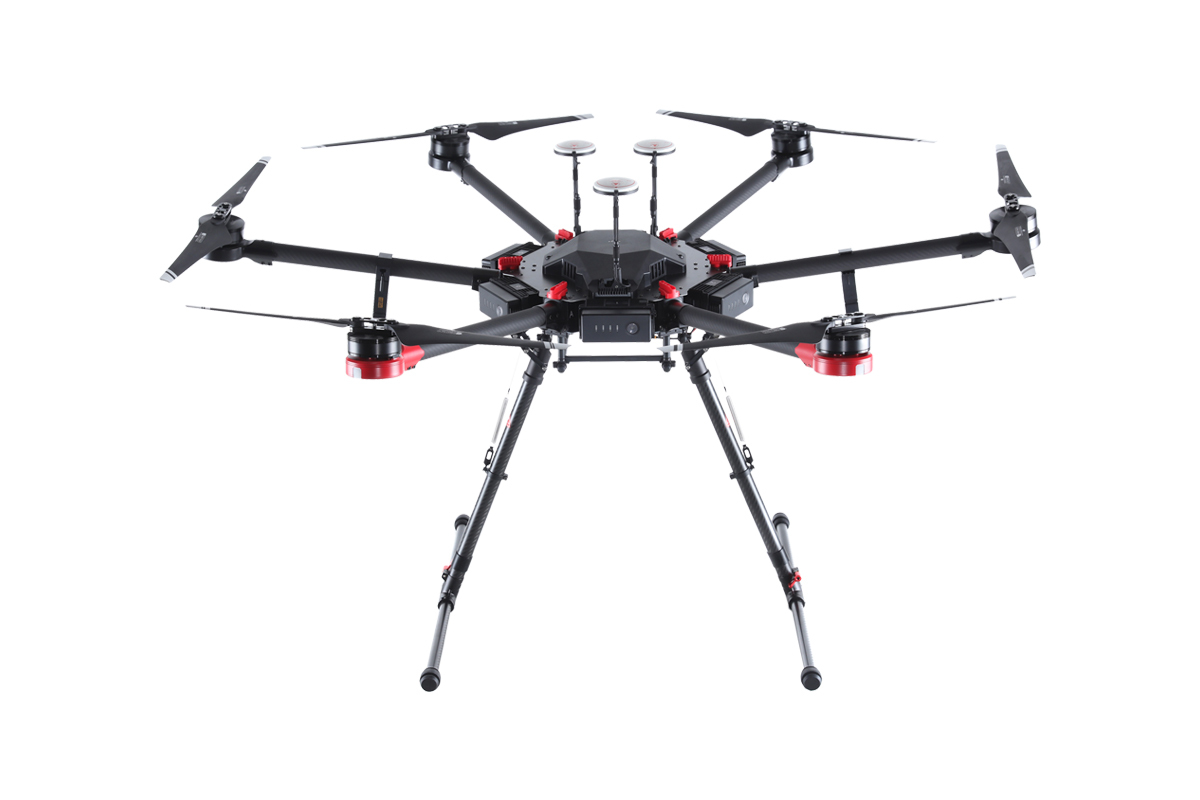
DJI Matrice 600 Pro with Zenmuse X5R

Specifications:

  • Price | (with camera) ~$8,400
  • Usability | professional, some set-up required
  • Camera | 16 megapixel Zenmuse X5R CMOS sensor
  • Video quality | 4K resolution, monitoring depends on user's screen
  • Gimbal included | with camera
  • Range | ~ 3 miles
  • Maximum flight time | ~ 30 minutes
  • Remote Control | monitor not included
  • Extra Features | 13lb maximum pay load, automated landing, return-to-home
The DJI Matrice 600 Pro starts at around $5,000, and allows for the user to customize their camera and gimbal attachments. The drone itself is at the lower end of the mid-level price range, but some of it's competitors include cameras with their products where this one does not. The camera chosen in this set up is the Zenmuse X5R gimbal camera and is capable of filming in 4K resolution, which is perfect for crystal clear remote sensing capture and analysis. When it comes to monitoring flight, the included A3 Pro Flight remote control has many DJI and third-party attachments available for whatever tablet or smart phone the pilot prefers to use. Much like its competitors and top entry-level models, this drone has a flight range of around 3 miles and a maximum flight time of 30 minutes. Flight range and time can be altered depending on how much weight the drone is carrying.

Since this drone is also made by DJI, like the Phantom 4 Pro, all of the software capabilities and functions for the Matrice are available for this model. One incredible feature of this model is its up to 13 pound pay load, putting its carrying capacity above many other models of similar price. This feature also allows for more options when it comes to choosing a camera and makes this model more versatile for its use. With a nearly $9,000 piece of equipment, one must be confident in their flying abilities as well as the drone's, with this model, the user gets that confidence with automated landing, return-to-home, and other features DJI models are equipped with.

When it comes to picking out a durable, reliable, and versatile mid-level drone, the DJI Matrice 600 Pro is a sure bet. With multiple camera compatibility, a 13 pound pay load, and DJI's easy-to-use software and smart features, this drone gives the user a customizable drone and a reliable flight experience.    

More specifications and information:

http://www.dji.com/matrice600-pro

High-Level Commercial:

Trimble UX5 HP
Specifications:
  • Price | ~$40,000
  • Usability | professional, industrial, some set-up required
  • Camera | 36 megapixel Sony Alpha 7R 15mm and 35mm lens 
  • Resolution | 1 cm to 25 cm ground sample distance
  • Range | ~32 miles
  • Maximum flight time | 40 minutes
  • Extra features | can fly in winds up to 34 mph and light rain
The Trimble UX5 HP is a fixed wing UAV like no other. The UX5 HP uses a state-of-the-art GNSS receiver and a mobile positioning system called "post-process kinematics" to fly, which eliminates the need for ground control points and therefore can be flown in places that may require a dangerous set-up otherwise. This UAV is equipped with a 36 megapixel Sony Alpha 7R which is capable of capturing up to 1 cm ground sample distance resolution; an unbelievably accurate technology. The UAV is put into flight by a catapult launch, can cruise at speeds up to 53 miles per hour, and has a maximum flight time of 40 minutes. The flight can be monitored with a custom tablet that comes with the model. The tablet allows the user to plan a flight path within its 32 mile range, collect real-time data, and take off/land the aircraft.

In addition to having industry-leading accuracy and data collection, the UX5 HP is incredibly durable and weather resistant. This aircraft is capable of flying in wind speeds up to 34 mph, light rain, and "extreme temperatures" as deemed by Trimble. It is made to land by sliding on its belly and is built durable enough to do so.

For industrial and professional applications where centimeters count, the Trimble UX5 HP is the best option for land surveying, mapping, and remote sensing. Light and durable, this aircraft has a range of 32 miles, and can fly for up to 40 minutes at speeds up to 53 mph and in winds of up to 34 mph. This UAV is capable of flying with out ground control points, making it safer to use than its fixed wing competitors and more versatile as far as ability to use.   

More specifications and information:


Sources